Streaming TV in Nottingham, set up device by device
It's a Sunday evening and the remote is already in hand. The television is on, but nothing worth watching is loading, and somewhere at the back of your mind sits a nagging thought: there must be a simpler way to get decent live TV over the broadband you already pay for. There is — and the setup is more straightforward than most people expect.
This guide works through the practical side: which assumptions about streaming TV tend to mislead people, how different devices in a typical Nottingham home actually connect, and what to do when something does not behave as it should.
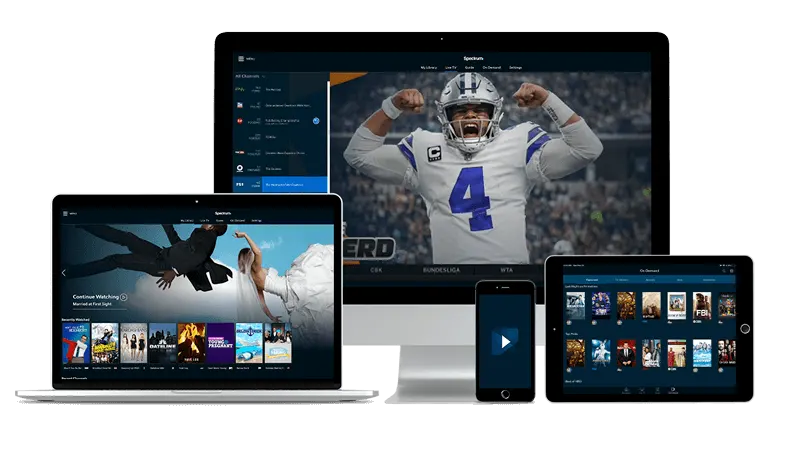
Three things people assume that are not quite right
You need a satellite dish or a cable subscription. This is the most common misconception. A streaming TV service runs entirely over your existing home broadband — no engineer visit, no dish bolted to the wall, no separate contract with a cable company. If the connection is solid enough to stream video on a phone, it is solid enough for TV on the big screen.
Setup takes hours and requires technical knowledge. In practice, once your login details arrive by email after payment, the process on most devices comes down to installing an app, entering those credentials, and waiting a moment for the channel list to load. A Fire TV Stick and an Android TV box both follow that same rhythm. The portal on a MAG box works slightly differently — you enter a URL rather than credentials in an app — but the result is the same.
You are stuck with one screen in one room. A single plan covers use across the devices the plan allows. That might mean the television in the sitting room, a tablet in the kitchen, or a phone on the move. The devices do not need to be the same brand or type, and a Samsung smart TV in one room can draw from the same account as a phone in another, within whatever the plan permits.
Getting each device connected
The starting point is always the same: a stable Wi-Fi signal or, where possible, an Ethernet cable. A living room where the router sits two floors up and behind two brick walls is asking for buffering; moving the router or adding a powerline adapter often solves more problems than any app setting can.
Android TV and Google TV are among the most straightforward. Open the Play Store, install IPTV Smarters Pro or TiviMate, and enter the server address, username and password from the email. Both apps display a full channel grid once the credentials are accepted.
Fire TV Stick requires one extra step: because IPTV apps are not always listed in the standard Amazon store, you enable 'Apps from Unknown Sources' in the settings, then install via the Downloader app. It sounds involved but takes only a few minutes the first time.
Samsung and LG smart TVs vary by model year. Newer sets can run compatible apps directly; older sets are often better served by plugging in a streaming stick rather than relying on the TV's built-in store.
iPhones, iPads and Apple TV use IPTV Smarters Pro from the App Store. The login flow is identical to Android.
For a household where every room has a different device, it helps to sort the connection at the router level first. If you share a building with other flats, contention on the line can affect everyone — there is a fuller discussion of that in this piece on busy buildings and shared connections.
What to check when the picture stutters or drops
Buffering has three common causes: the internet connection, the Wi-Fi signal between the router and the device, and — less often — a problem with the stream itself.
Check the router before the app. Restart it, wait for it to come back fully, and test again. If a wired connection gives a clean picture while Wi-Fi does not, the issue is signal strength rather than the service. A powerline adapter or a mesh node placed closer to the television resolves this more reliably than adjusting any app setting.
If the connection is fine but one particular channel stutters while others do not, try switching the stream quality within the app. Most players offer an option to select a lower-quality feed, which uses less bandwidth and tends to stay stable on a marginal connection.
In a bedsit or single-room setup, the variables are fewer but the solutions are the same — a short piece on single-room TV connections goes into more detail on that specific situation.
If you have worked through the connection and the app and the picture is still wrong, log out of the player and log back in. Credential caches occasionally go stale, and a fresh login usually clears it.
Finding your way around the channel guide
A large channel list can feel overwhelming the first time. Every player covered here has a search or filter function: start entering a name and the list narrows immediately. Favourites work the same way — mark the channels you return to regularly and they surface at the top, so you are not scrolling past channels you never open.
The guide groups channels differently depending on the player you use, so a quick search by name is usually faster than browsing by category on the first session. Once you have marked a handful of favourites, day-to-day use becomes much quicker.
If niche categories interest you — science fiction channels in particular — there is a dedicated piece on finding sci-fi channels in the guide that explains how the guide is laid out and where those channels tend to sit.
For the full picture of what is available on UK IPTV, the channel list and plan options are on the landing page.
Quick answers
- How quickly can I start watching after I pay?
Login details are sent by email, and in most cases they arrive within minutes of payment. Check your spam folder if nothing appears after a short wait.
- Do I need a smart TV, or will any screen work?
Any screen works. Android phones and tablets, iPhones, iPads, Windows and Mac computers, and streaming sticks all support the service, so a television does not need to be a smart TV — a Fire TV Stick or similar device plugged into an older set is perfectly fine.
- Will it work on my broadband in Nottingham?
If your connection handles video calls and streaming reliably, it should cope with this service, though a wired connection to the television gives the most consistent result. Most households run it over Wi-Fi without trouble.
- Can I use the service on more than one device?
That depends on the plan. Each plan specifies how many simultaneous connections it allows, so check the plan details on the landing page before choosing.